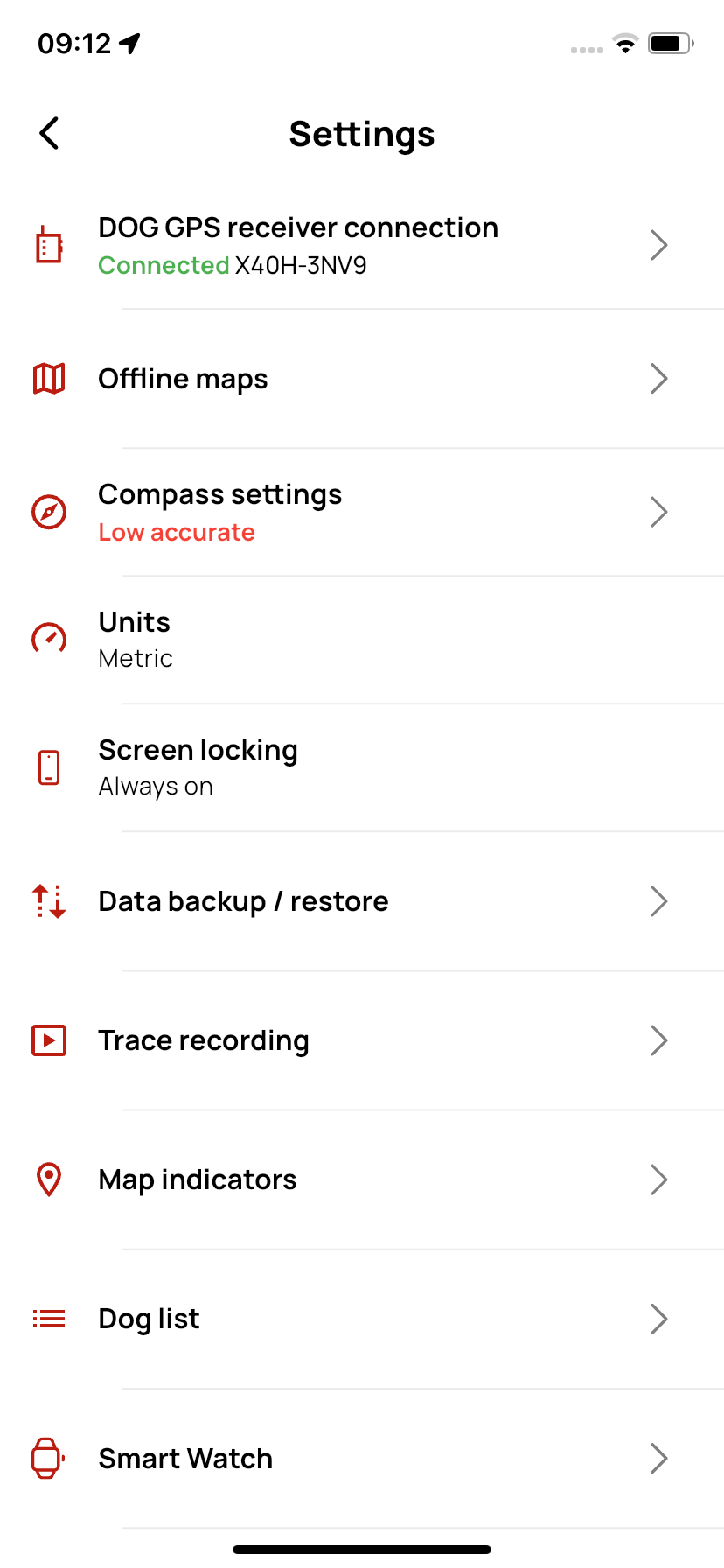
Settings
On this page, you can customize the app to your needs – from map appearance and units to data backup.
📡 DOG GPS Receiver Connection
- Here you can connect and disconnect devices. All available DOG GPS devices are displayed here.
- Devices are searched via Bluetooth.
Only for DOG GPS X40 devices: If your controller does not have the latest firmware version, a button for updating will appear here.
🗺️ Offline Maps
If you want to use the app offline, you need to download offline maps.
- Custom maps – you can upload your own maps in MBTiles format to the app.
- Download area – in the map, you can select which part of the map you want to download.
- Download by country – you can download the map by country. Some countries are divided into several parts.
🧭 Compass Settings
- The settings are the same as in the compass section.
📏 Units
- Metric – uses meters, kilometers, kilograms (standard European units).
- Imperial – uses feet, miles, pounds (Anglo-Saxon units, e.g., for USA/UK).
💡 Screen Timeout
- Always on – the display will remain on while using the app and will not turn off.
- System default – screen timeout follows your phone's settings (the display will turn off according to the system timer).
💾 Backup / Restore Data
- Backup data – creates a backup of your data.
- Restore data – restores data from a backup.
📝 Track Recording
- Permanent track recording – option to enable permanent track recording.
This feature may increase your device's battery consumption.
📍 Map Indicators
General settings- Indicator size – set the indicator size according to your preferences, from smallest to largest.
- Track line thickness – determine how thick the line representing the dog's (device's) track will be.
- Bark line thickness difference – set the difference between the track line thickness and the bark line thickness.
- Icon style – choose from two options:
- Default – indicator with a device-type icon (dog/hunter) and the order number in the device list.
- Simplified – indicator is just a circle without an icon or number.
- GPS accuracy circle – a circle around the device shows the GPS accuracy.
- Name – choose whether the device name should be displayed on the map.
- Speed – shows the current movement speed of the device on the map.
- Distance – shows the distance of the device from your position.
- Name – show or hide the waypoint name on the map.
- Distance – show the distance of the waypoint from your position.
- GPS accuracy circle – a circle around your position shows GPS accuracy.
- Compass direction and accuracy – shows the direction your phone is currently facing and compass accuracy.
- Movement direction indicator – shows the direction you are currently moving.
Don't be afraid to experiment with the settings – everything can be reset at any time using the Restore default settings option!
🐕 Dog List
Dog list settings- Row size – choose between two display modes for the list:
- Compact – all device information is on one row.
- Expanded – information is split into two rows for better clarity.
- Distance – shows the distance of the device from your current position.
- Speed – shows the current movement speed of the device.
- Bark intensity – shows the barking level (3 intensity levels).
- Battery status – shows the current battery status of the device.
- RF signal strength – shows the radio signal strength between the device and the controller.
- GPS position accuracy – shows the quality of the device's GPS signal.
- Above the device list is a control panel with quick actions. You can choose which options to keep in the panel and which to hide.
Don't be afraid to experiment with the settings – everything can be reset at any time using the Restore default settings option!
⌚ Smartwatches
The app is compatible with Apple Watch and Garmin watches. To install the app on your watch, follow the instructions in the Dogtrace GPS 2.0 mobile app.
📧 Send Feedback
Send us your feedback using this form – you can send praise, improvement ideas, or report a bug.
ℹ️ About the App
Information about the app.